Using patterns
In Veracode Risk Manager (VRM), patterns let administrators automate actions based on defined conditions. Patterns run on a schedule and automatically take action on assets or issues when specified conditions are met. This removes the need for manual intervention to keep issue status, ticketing, applications, and labels up to date.
You can use patterns to standardize workflows, reduce repetitive tasks, and ensure that issues meeting defined criteria are consistently tracked and acted on. This guide explains how to create, manage, and use patterns in VRM.
About patterns
Patterns consist of three parts: conditions, actions, and options.
A condition defines the criteria that assets or issues must meet for a pattern to apply. Conditions are built using filters in VRM, and a pattern can include multiple conditions that are evaluated together to determine whether the pattern runs.
An action is the single operation a pattern performs on each asset or issue that meets its conditions. Actions automate tasks such as assigning applications or labels to assets or creating tickets and updating issue status.
Options are the configuration settings that control how and when a pattern runs. They include the pattern’s name and description, status (active or deactivated), and limits such as the maximum number of assets or issues the pattern can affect in a single run.
Create a pattern
Create a pattern to automatically take action on assets or issues that meet specific conditions. By default, active patterns run once per day.
Prerequisites:
Have the VRM Admin role.
To complete this task:
-
In VRM, from the left navigation menu, select the Settings icon
 .
. -
Select the Patterns tab.
-
Select Add Pattern.
-
In the FOR THESE section, select whether the pattern applies to Assets or Issues.
-
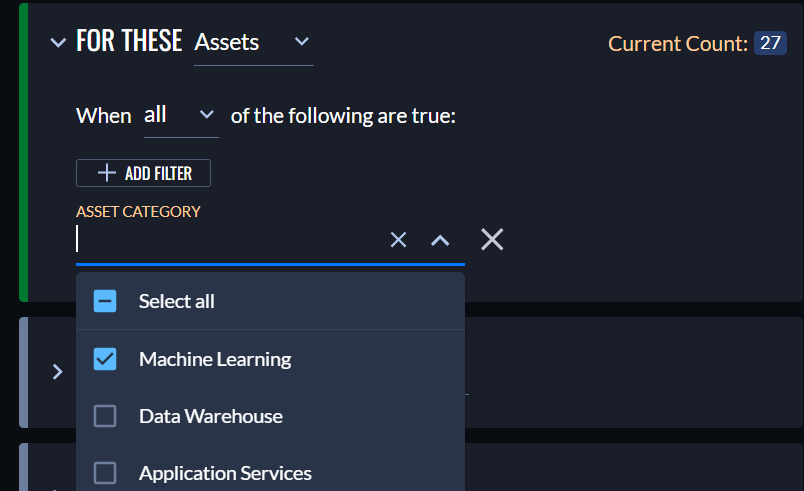
Select + Add Filter, then choose one or more conditions that define which assets or issues the pattern applies to.
-
From the selected condition, select at least one parameter.
-
If you select more than one filter, select whether the pattern applies when all or any of the conditions are true.
-
In the DO THIS section, select an action and complete any required fields.
- For assets, set an application or add one or more labels.
- For issues, create a ticket in Jira, ServiceNow, or Azure DevOps or update the issue status. You can create only one ticket per issue.
-
In the OPTIONS section:
- Enter a name for the pattern. The name can include letters, numbers, spaces, and special characters.
- Optionally, enter a description.
- Optionally, set Max entities affected to limit how many actions the pattern can take in a single daily run. The default value is 20.
- Set the pattern status to Active or Deactivated.
-
Select Add Pattern.
If the pattern is active, it runs during the next daily cycle.
Edit a pattern
Edit a pattern to change its conditions, action, or options.
Prerequisites:
Have the VRM Admin role.
To complete this task:
-
In VRM, select the Settings icon
. -
Select the Patterns tab.
-
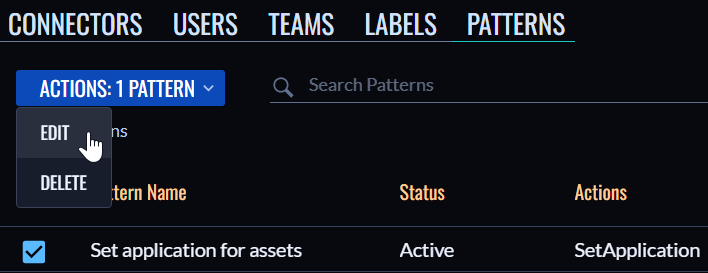
Select the checkbox next to the pattern you want to edit.
-
Select Actions: 1 Pattern > Edit.
-
Edit the pattern name, description, status, conditions, actions, or options. A pattern name, at least one valid condition, and one valid action are required.
-
Select Save to apply the changes, or Cancel to discard them.
Delete a pattern
Deleting a pattern permanently removes it and cannot be undone.
Prerequisites:
Have the VRM Admin role.
To complete this task:
-
In VRM, select the Settings icon
. -
Select the Patterns tab.
-
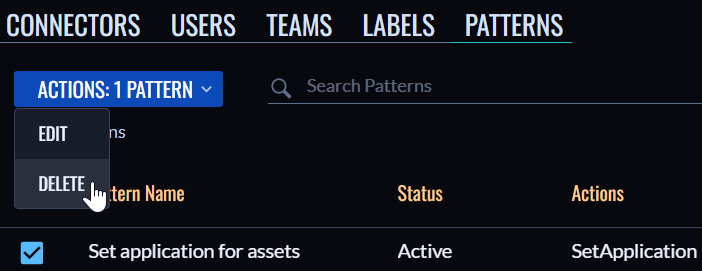
Select the checkbox next to the pattern you want to delete.
-
Select Actions: 1 Pattern > Delete.
-
In the confirmation window, select Delete Pattern.
Best practices for patterns
Follow these best practices to reduce noise and ensure patterns deliver consistent value:
- Use patterns to automate repeatable workflows that would otherwise require manual effort.
- Start with conservative conditions and a low Max entities affected value to avoid generating excessive tickets.
- Use clear, descriptive pattern names so the intent is obvious in the Patterns list.
- Periodically review patterns to ensure conditions and actions still reflect your operational needs.