Update multiple mitigations and comments
Use the Triage Flaws page in the Veracode Platform to make changes to multiple selected flaws at the same time, including commenting, marking as mitigated, or approving or rejecting mitigations if you have the appropriate role permissions. The multiple change performs the selected action on all flaws that you currently have checked out.
You can change a maximum number of 50,000 flaws in a multiple change.
Using the Triage Flaws page
You can change more than one flaw at once from the Triage Flaws page.
To complete this task:
-
Search for the flaws you want to change.
-
Check out the flaws, either one at a time or by selecting checkout
 in the header row to check them all out with one click.
 -
From the Select Action dropdown menu at the top of the pane, select from the following actions:
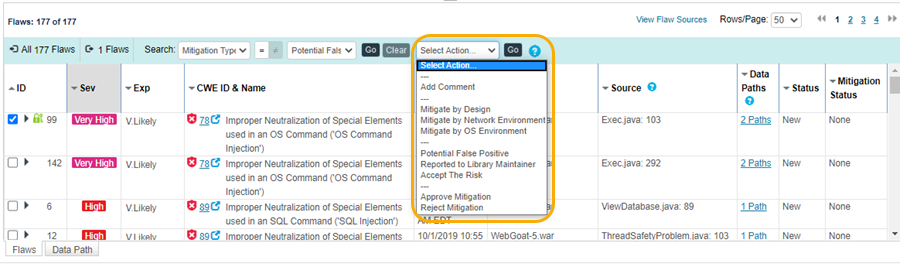
- Add Comment to keep notes or provide comments to other reviewers.
- Mitigate by Design to state that custom business logic within the body of the application, which might not be fully identifiable by an automated process, addressed the vulnerability.
- Mitigate by Network Environment to state that an environmental control provided by the network the application is running on addressed the vulnerability.
- Mitigate by OS Environment to state that an environmental control provided by the operating system on the machine the application is running on addressed the vulnerability.
- Potential False Positive to state that Veracode has incorrectly identified something as a vulnerability. If you identify a flaw as a potential false positive, it does not cause Veracode to remove a potential false positive from your published report. Your organization can remove a potential false positive from the published report by approving it. If your organization approves a flaw as a false positive, your organization is accepting the risk that this flaw might be valid.
- Reported to Library Maintainer to state that the current team does not maintain the library containing the flaw. You referred the vulnerability to the library maintainer.
- Accept the Risk to state that your business is willing to accept the risk associated with a finding. Your organization evaluated the potential risk and effort required to address the finding.
-
Select Go. Veracode confirms the number of flaws you are changing and prompts you for a description of the change.
-
In the Change Multiple Flaws window, enter your reasoning for your proposed mitigations. If you have the TSRV feature enabled, you will see the corresponding TSRV input fields.
-
Select Continue. The Veracode Platform applies the change to the checked-out flaws.
-
Clear the flaws one-by-one to check in all files, or select Check-in
 in the header row to check in all files with one click.
Flaws not checked-in could cause additional actions to occur on them and would remain locked to other users. A user with the Mitigation Approver role who has access to your application can also check back in a flaw that you have checked out.
Using the Mitigated Flaws page
You can accept, reject, or comment on several flaws from the Mitigated Flaws Page.
To complete this task:
- In the Mitigated Flaws page of the application, filter the list of flaws to find the ones you want to change.
- Check out the flaws, either one at a time using the checkbox next to the Id column, or by selecting checkout in the header row to check them all out with one click.
- Select Accept, Reject, or Comment.
- Enter your comments on the action in the Change Multiple Flaws window, then select Continue. The screen refreshes, updates the number of accepted and rejected flaws at the top of the page, and the flaws are checked back in.
A user with the Mitigation Approver role who has access to your application can also check back in a flaw that you have checked out.
You can accept multiple flaws by checking them out and selecting Accept.