DAST integrations
You can integrate Veracode DAST with the following development tools.
CI/CD
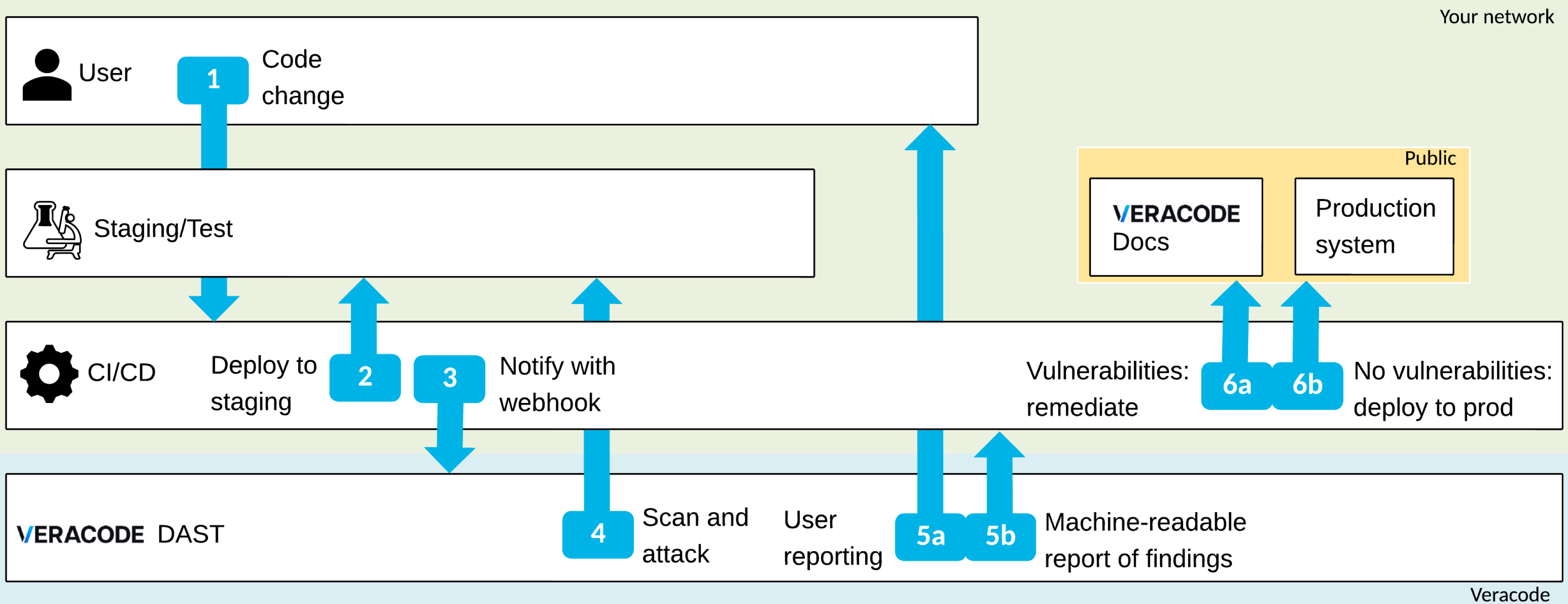
To add dynamic analysis to your CI/CD pipelines, integrate DAST with webhooks. If you need assistance, contact Veracode Technical Support.
-
Your developer commits code or triggers your CI/CD pipeline through another event.
-
Your CI/CD toolchain deploys your code to your staging/test system.
-
After building your staging system, your CI/CD pipeline uses a webhook to trigger the scan.
-
DAST scans your newly built system and launches the attack vector scanners.
-
DAST provides the following reports:
a. The Scan details page in the UI.
b. Downloadable reports in PDF, JUnit, or CSV format.
These reports can be pulled back in the CI/CD toolchain through your webhook.
-
Because machines can read the reports, you can let builds fail based on your own set of rules. Example rules to let builds fail include:
a. The number of detected vulnerabilities.
b. The maximum severity of detected vulnerabilities.
-
If DAST finds a vulnerability, you can quickly fix the detected vulnerabilities through the integrated docs with specific code examples to remediate vulnerabilities efficiently.
If there are no vulnerabilities, your CI/CD toolchain deploys the new code to your production system.
Vulnerability management
To import vulnerabilities into your vulnerability management solutions, use webhooks to integrate DAST.
DefectDojo
DefectDojo is an Open Source application available through GitHub.
See the different usage examples for more details on the different usage types.
The importing of the scan results is available through easy integration. Once you start an engagement, you can easily import the machine-readable scan results and have them shown as findings, including CVSS scoring, vulnerability description, URL, and remediation advice, and included a link to the docs.
To automate this process, you can use the DefectDojo API to send the scan reports to the API.
This process would need to be defined in your CI/CD to ensure this happens after every scan. Also, see the below example of importing a scan result with the API.
DefectDojo allows you to integrate with Jira, so you can easily create Jira tickets from your DefectDojo and close findings if the ticket is closed.
See the DefectDojo documentation.
If you need help with this process, contact Veracode Technical Support.
Example: Import scan results to DefectDojo
Below is an example of testing the DefectDojo API with a tool like Postman.
This example assumes your DefectDojo is running at https://defectdojo.herokuapp.com/ (demo application)
- Verb: POST
- URI: https://defectdojo.herokuapp.com/api/v2/import-scan/
- Headers tab: add the authentication header
- Key: Authorization
- Value: Token "token_value"
- Body tab
- Select form-data > bulk edit. Example for a DAST scan:
engagement:3
verified:true
active:true
lead:1
tags:test
scan_date:2019-04-30
scan_type:DAST Essentials Scan
minimum_severity:Info
skip_duplicates:true
close_old_findings:false
- Body tab
- Select Key-value edit.
- Add a
fileparameter of typefile. This will trigger multi-part form data for sending the file content. - Browse for the file to upload.
- Select Send.
Faraday
Faraday is a vulnerability management solution developed by Infobyte. There is a free Community edition available on GitHub. For more information, see the Faraday documentation.
Importing, collecting, and reporting on findings is similar to the above-described process for DefectDojo. If you need help with importing your results, contact Veracode Technical Support.
Ticketing
To import vulnerabilities into your ticketing systems, use webhooks to integrate DAST.
Your ticketing or issue tracking system is where you store your upcoming tasks and rank your To-Dos according to importance. Veracode strongly believes that severe security vulnerabilities should be top of your list. Therefore, you can use DAST to create automatic tickets if vulnerabilities should be detected. This section assumes you have a CI/CD integration that automatically starts the scans and receives the reports. For more information, see CI/CD integrations. In addition, this section explains how this connection could work through your vulnerability management system, such as DefectDojo.
Jira
Jira is an issue and project tracking system sold by Atlassian.
The platform allows development teams to capture and prioritize tickets that need to be developed. As a best practice, development teams should create access for known vulnerabilities in their application, so the remediation is planned and tracked. In addition, Jira offers an API to script the interaction with other software. Via this API, you can script the creation of issues individually or in bulk.
Because Jira setup (issue names, team rules, etc.) is slightly different for each customer, an example for you to copy/paste is not available. For help with this integration, contact Veracode Technical Support.
DefectDojo
Using Jira and DefectDojo is a neat way to integrate the two tools. The Defect Dojo API allows you to set up two-way communication.
So in an ideal scenario, once you create an issue in DefectDojo, a new topic in Jira is automatically created, including the critical information on how to remediate it and where it was found.
Assuming the vulnerability was closed and the corresponding Jira ticket was closed. Then the related finding in DefectDojo will be closed. Neat, right?
You can either look up this documentation or contact Veracode Technical Support to set this up.
Asana
Asana is a project management solution that helps teams organize and prioritize work.
Similar to Jira, Asana offers an API to script the interaction with their software. Creating a new task is as easy as POSTing to the /tasks endpoint with a data block containing the fields you'd like to set on the task. Any unspecified areas will take on default values.
Because Asana setup (task names, team rules, etc.) is slightly different for each customer, an example for you to copy/past is not available. If you have questions, contact Veracode Technical Support.